Showing posts with label tricks. Show all posts

Saturday, 23 November 2013

Use Google Docs to Monitor Availability of iPhone and iPads in Apple Stores

You are looking to buy an iPhone 5S (or the iPad Air or the upcoming iPad Mini Retina) but the model you want is neither available on the Apple website nor at the local Apple Store. Apple will not notify you when they have stock so you manually check the Apple’s online store, multiple times a day, to know if that product has become available or not.

A website called Apple-Tracker.com (now offline) made that task slightly less cumbersome as it allowed users to quickly check availability of Apple products in stores in their locality. You could choose an Apple product, enter your zip code and it would tell you if that product was available for pickup at any of the Apple stores in your locality.


The website is however no longer available but the developer has uploaded the code on Github should you be interested in running a private copy of the Apple Tracker. This is a Node.JS based app and implementation does need some technical know-how.

There’s however a simpler Google Script based version of the Apple Tracker tool available as well that you can run privately in your own Google Drive. This version will send email alerts (sample alert) as soon as it finds that an item in your watchlist is available at a nearby Apple store. You can track stocks of iPad Air, iPad Mini with Retina Display and the iPhone 5S.

Here’s how you can use the Google Script based Apple Tracker tool for automatically tracking Apple inventory at various Apple Stores in your locality:

  1. Click here to make a copy of the Apple Tracker script in your Google Drive.
  2. You’ll have a sheet with a list of all available models of the iPhone 5S, iPad Air and the upcoming iPad Mini with Retina. Put “Y” against items that you wish to track.
  3. Go to the Apple Tracker menu in the sheet and choose Initialize. Then click “Accept” at the authorization dialog. The script is open-source  and none of your data leaves your Drive.
  4. Choose Start Tracking under the Apple Tracker menu. Enter your zip code (U.S. only) and your email address where you wish to receive product availability alerts. Click the Start Tracking button and exit the Google sheet.

If you would like to disable tracking, just open your Google sheet copy and add “N” against all the product items that you no longer wish to track. Alternatively, you may choose the Uninstall option under the Apple Track menu.

Hate Typing Passwords? Log into your Mac Computer with your iPhone

Knock to Unlock is a new iPhone app ($3.99) that lets you easily log into your locked Macbook using the iPhone in your pocket. While you are near your locked Mac, just know the screen of your iPhone twice and the app will automatically enter your password on the computer.

Knock has two components – the desktop app that runs on your Mac and the iPhone app. When you knock on the iPhone screen, the Mac app automatically enters your password and unlocks the computer. Your Mac is still protected with a password, the app just saves you from the hassle of typing that long password every time you sign-in.

And if your iPhone isn’t around, you will still be able to sign in to your Mac by manually typing the password.

Know to Unlock is currently available for Mac only but a Windows version is also in the works. You need an iPhone running on iOS 7 and not a very ancient Macbook or iMac running on Mountain Lion or Mac OS X Mavericks.

One iPhone can only be paired with one Mac computer though the website says that support for multiple Macs is coming very soon.

Find Out If Your Outgoing Email Messages Leak Your IP Address

When you send an email to someone, the outgoing message may sometimes include the IP address of your computer that was used to send that message. The IP address is included inside the message header and, if available, it can help the recipient trace the approximate geographic location of the sender.

Not all email providers include the sender’s IP address in the outgoing email messages.

For instance, Gmail omits the sender’s IP address if you send mails through Gmail’s website or through Gmail’s mobile apps but the IP address gets included if you use a third-party program – like Microsoft Outlook or the Mail App on your iPhone – to send the message through your Gmail account. Outlook.com also hides the sender’s IP address while Yahoo Mail includes that information in the outgoing message headers.

If you would like to know if your email client is revealing your IP address to the recipients or not, you can either send an email to yourself and look at the message headers but if that sounds a bit too technical, give emailipleak.com a try.

When you open the site in your browser, it detect your computer’s IP address and creates a unique email address for you. You are required to send a blank message from your email client to that address. When the message arrives, the tool looks for your IP address in the headers of the incoming message and alerts you if a match is found.

The site’s privacy policy says that it does not collect any user information and the information is discarded immediately after any results pages are constructed.


A Free Screen Capture Tool Loaded with Features

ShareX is a free and open source screen capturing tool for Windows so loaded with features that it may give even commercial screen capture programs a run for their money. The tool is portable too so you can run it on your USB drive without installation.


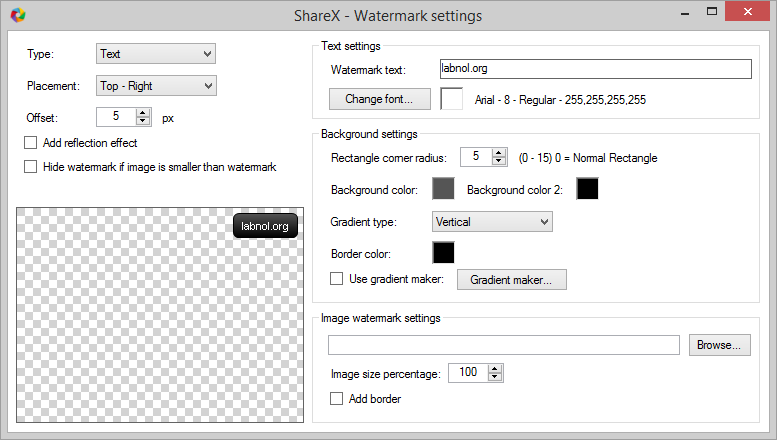
ShareX has all the necessary features that would expect in a screen capturing tool. It lets you capture fixed areas on the screen, full application windows or even freehand regions. There’s a built-in editor to help you annotate screenshot images. You can create watermarks and they are auto-added to the image after the screen capture is complete.

You can configure the app to auto-upload your screen captures to cloud destination like Google Drive, Dropbox, Picasa, Box, Flickr, Imgur and many more. When the image is uploaded, the shared URL is copied to the clipboard for quick sharing on social networks.

There’s a useful timer mode that will auto-capture screenshots of the selected region on your desktop after ‘n’ seconds and will then upload them to your favorite destination.


The tool can automatically watermark your screenshot images before uploading

ShareX also includes a screen recorder and the screencasts can be either saved as video (MP4) files or as animated GIFs. You can modify the default capture frame rate (FPS) to achieve a balance between the video quality and the video file size.

Alternatives include Greenshot, Bug Shooting, PicPick and Skitch.

Monday, 18 November 2013

Download Youtube Videos Online


Watching Video is everyone's favorite pass time on the Internet.Everyone use a favorite place to watch videos,Youtube ,Megavideo,Metacafe video etc etc.Though Youtube is the top favorite among all of them.Watching video on the respective site may be a problem if you suffering from a slow Internet connection.

Wouldn't it be great to first download the video and then watch it like you would a full movie without interruption?
This sites doesn't have a built-in download feature but that doesn't matter,because we have accummulated some other ways to download videos from Youtube.

  • Here are some site that you can use to download Youtube videos online :
  1. keepvid.com
  2. Catchvideo.ne\
  3. Savevid.com
  4. Clipconverter.cc
  5. Savemedia.com
  • Here is another smartest way to do so :
  1. Go to Youtube.
  2. Search and find the video you want to download.
  3. Click on it.
  4. Click on the address bar of your browser.
  5. Replace "http://www."  or "http://m."(If you are from mobile) with "ss" and press enter key.
  6. Now a screen will appear with download links.
  7. Choose your video format there and start downloading.

track unknown callers by Truecaller


As you all know there are lots of services in the web world that you can use to trace unknown mobile numbers.But those are not very effective as you could get only few details like the state which mobile number belongs to and its telecom oparetor.

But today we are living in advanced twenty first century where everything is possible like we got an app which can help you to find more details (like owner/area etc) about those unknown callers.its called Truecaller.

  • How does Truecaller works?
Truecaller is a global dynamic directory for mobile phones.It was the phone directory of users.to build the database of mobile numbers,and any user can do number look up using it.

  • Trucaller Feature :
  1. Number lookup : you can lookup[ numbers by just entering the numbers in the search option of Truecaller app.
  2. Name lookup : using the number lookup feature you can find the contact details of any person by name.
  3. Call Filter : This feature allow you to add unwanted numbers to block/spam list.And Truecaller will notify you when the number try to get in touch.
  • Truecaller download links : 
  1. For Android : Download
  2. For Nokia : Download
  • You can also try it online by going here : Truecaller

Saturday, 26 October 2013

Send email without opening yuor email id

Hello guys,
we are back again with another amazing trick.
this time with us send Email to your friends without opening your
mail id.
in case if your mail server(gmail/yahoomail/rediffmail/homail) is getting slow
at any important time just try this to get rid of this problem.
here are the sites you can give a try :

1) http://www.filepigeon.com/

2) http://www.emkei.cz/

Spokentext text to mp3 converter

here is another site that you can use to convert any text to a mp3 file.
its called Spokentext.and its more soffisticated than Vozme,
cos it has more features than Vozme.here you can change your volume
level while converting,and also you can make your mp3 file with different
voices.

Give it a try : http://www.spokentext.net

VOZME: Text to Mp3 Converter


VOZME is one of those wonderful online web apps that does one thing but does it very well. What it does is convert text to Mp3.

The site is simplicity itself. Type some text in the text box. Choose a voice (male or female) and click on the "Create mp3" MP3 button. That’s it! 
Within seconds, the text is converted to an MP3 file which can be saved and listened.
no account to sign up for or registation required.

Give it a shot at: www.vozme.com